

This article is for anyone who wants to create polished, eye-catching photo collages but has no background in graphic design and no interest in learning complicated software. Whether you are pulling together vacation memories, building a social media post, or putting together a gift for a family member, the collage tool you choose should do the heavy lifting for you. By the end of this guide, you will know exactly what to look for in a collage maker, understand how the most popular options differ from one another, and be able to pick the one that fits your goals and skill level.
Why the Right Tool Matters More Than Your Design Skills
The collage-making category has exploded in recent years, and the options on the market range from stripped-down mobile apps to full-featured browser-based platforms with artificial intelligence built in. For someone without a design background, this abundance of options can feel paralyzing. The good news is that the best tools today are specifically engineered for non-designers. Templates, smart layouts, and automated editing features mean that strong visual results are within reach for anyone who can drag and drop a photo.
The challenge is not finding a collage maker. The challenge is finding the one that matches how you work, where you will use your finished collages, and how much you want to pay. A tool that is perfect for quickly building Instagram content might be frustrating for someone who wants fine-grained control over layout spacing. A platform that feels luxurious on a desktop browser might be clunky on a phone. Knowing what criteria actually matter will save you a lot of trial-and-error time.
The 8 Criteria That Separate Good Collage Tools from Great Ones
Before comparing any specific platform, anchor your decision to the following evaluation framework. A strong tool for non-designers should satisfy most or all of these standards.
1. Template Quality and Variety
Templates are the starting point for most users, and the best collage tools offer hundreds or thousands of professionally designed options sorted by theme, occasion, or format. Look for templates that feel modern and polished, not clip-art generic. A strong library means you will rarely need to start from a blank canvas, which is exactly the point for users without a design background.
2. Ease of Layout Customization
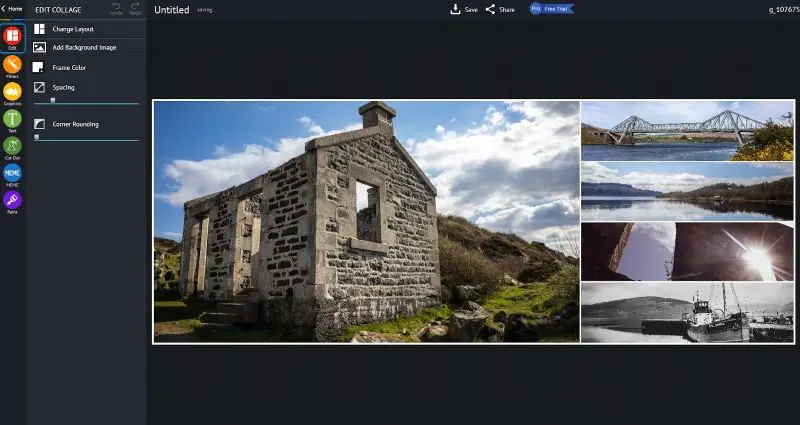
Being able to swap images in and out, resize panels, adjust spacing between photos, and change the number of cells without rebuilding your design from scratch is critical. Tools that let you shuffle or preview multiple layouts in a single click are especially valuable. If customizing the layout feels like a puzzle, the tool is not the right fit for casual users.
3. Built-In Photo Editing
A collage is only as good as the individual photos in it. The best platforms let you apply filters, adjust brightness and contrast, crop, and rotate each image directly inside the collage editor, without sending you to a separate app. This keeps your workflow fast and contained.
4. Text and Typography Options
Being able to add captions, titles, labels, or personal messages directly onto your collage adds a layer of personalization that makes the final product feel intentional rather than accidental. Look for tools that offer a variety of fonts, text size controls, and color options. Some platforms now offer AI-generated text effects that can transform plain words into decorative elements automatically.
5. Export Quality and Format Options
Where you plan to use your collage should drive your format choice. Sharing on social media calls for PNG or JPEG at screen resolution. Printing on photo paper or canvas requires much higher resolution output. Make sure the tool you choose can export at the quality level your end use demands, and check whether high-resolution downloads are locked behind a paid tier.
6. Watermark Policy
Nothing undercuts a carefully made collage like a tool’s branding stamped across the corner. Free tools vary widely here. Some add watermarks on every free export, others only on certain asset types, and some offer completely watermark-free downloads on their free plans. Read the fine print before you invest time in a design.
7. Mobile vs. Desktop Experience
Some users work exclusively on their phones and need a responsive, app-based experience with an interface designed for touchscreens. Others prefer the precision of a mouse and a large monitor. Many platforms offer both, but the quality of the mobile and desktop experiences is rarely identical. Consider where you will most often be working when making your decision.
8. AI and Smart Features
Artificial intelligence has made its way into nearly every collage tool in 2026. Background removal, automatic image enhancement, AI-generated layouts, and prompt-based text effects are now common. For users without design experience, these features can close the gap between what you can produce on your own and what a professional designer might create. Platforms that have invested in practical, accessible AI features tend to deliver noticeably better results for non-designers.
Types of Collage Tools and What Each One Is Best For
Understanding the broad categories of tools on the market will help you narrow down quickly.
Template-First Web Platforms
These are browser-based tools that open with a curated library of pre-built collage designs. You pick a template, upload your photos, swap in your images, adjust text and colors, and download. The entire process can take under five minutes. These platforms are the most beginner-friendly category because the design decisions are mostly made for you upfront. The tradeoff is that your creative freedom is somewhat limited unless you invest time in learning the deeper editing controls.
These platforms tend to have the largest asset libraries, including stock photos you can use to fill gaps, icons, stickers, and graphic elements. They are ideal for social media content, event announcements, digital cards, and anything where getting to a finished result quickly matters more than pixel-perfect control.
Grid-and-Layout App Tools
Some tools are built specifically around the grid collage format, where a set number of photos are arranged in clean cells with adjustable borders. These tools are faster and more focused than full-featured design platforms. They work well for straightforward photo arrangements but may feel limiting if you want to mix photos with graphics, add a lot of text, or experiment with more editorial layouts.
These are typically available as mobile apps, often free or very low cost, and are excellent for quick turnaround social sharing. If your primary goal is to group a few vacation photos together for an Instagram post, this category probably fits your needs well.
All-in-One Design Platforms with Collage Features
These are comprehensive creative tools where photo collage is one of many things you can build. They typically offer the deepest customization, the most asset variety, and the most powerful editing tools. For a non-designer, the breadth of options can feel overwhelming at first, but the template starting point usually keeps the experience manageable. The upside is that as your skills grow, the tool grows with you.
Adobe Express: A Strong Option Worth Considering
If you are looking for a well-rounded tool that does not assume any design background, Adobe Express is worth serious consideration. The platform’s collage maker is free to use and accessible directly in your browser, with a mobile app available as well.
One of its most useful features for beginners is the shuffle layout option. Once you upload your photos, you can instantly cycle through different grid arrangements without repositioning anything manually, which makes the process of landing on a layout you like fast and low-friction. From there, you can swap images, adjust border spacing, crop individual photos to fit their cells, and apply filters or enhancements to individual images, all within the same editor.
What sets it apart from simpler grid tools is the integration of Adobe’s broader creative toolkit. You can make a collage and then add animated text effects powered by Adobe Firefly, apply professional-grade photo filters, use the background removal tool to create cutout or scrapbook-style effects, or pull in royalty-free images from Adobe Stock to fill in your design. The free plan includes thousands of templates, core photo editing features, and 2GB of storage, making it a practical choice for most everyday collage needs without requiring a subscription.
How to Evaluate Pricing Without Getting Burned
Most collage tools follow a freemium model, where basic use is free and advanced features are gated behind a paid plan. Before committing to a tool, walk through this checklist:
- Can you download your finished collage without a watermark on the free plan?
- Are the templates you actually want to use available for free, or are the best ones paid-only?
- Is the free plan time-limited (a trial) or permanently free with restrictions?
- Does the paid plan offer features you will realistically use, or is it mostly extras you do not need?
- Is the pricing per month or per year, and what is the annual cost if you commit?
For most casual users, a free plan with watermark-free exports covers everything they need. Power users who want high-resolution downloads, premium templates, or advanced AI features will likely find that a low-cost monthly plan is worthwhile.
Tips for Getting Better Results, Regardless of Which Tool You Use
Even the best collage tool can only do so much if the underlying photos are not working together. A few practical habits will improve your output across every platform.
- Choose photos with consistent lighting whenever possible. A mix of dark indoor shots and bright outdoor photos will look unbalanced in a grid layout.
- Use an odd or even number of photos intentionally. Certain grid layouts look best with 4, 6, or 9 images. Trying to fit 5 images into a layout designed for 6 often means one cell looks awkward.
- Keep your color palette in mind. Collages where the photos share similar tones or a unifying color feel cohesive. Tools with color-matching filters can help bridge inconsistent photos.
- Start with a template that matches your photo count. If you have 8 photos to work with, pick a layout built for 8 cells rather than cropping your selection to fit a different number.
- Leave breathing room. Tight borders between every cell can make a collage feel cluttered. A few pixels of white or neutral spacing between photos improves readability and feels more polished.
Frequently Asked Questions
Do I need to pay for a collage maker to get professional-looking results?
Not necessarily. The free tiers of several leading collage platforms have expanded significantly in recent years, and it is possible to produce polished, high-quality collages without spending anything. The main limitations of free plans tend to be storage capacity, access to premium template libraries, and in some cases export resolution. For casual personal use, social media sharing, or digital cards, the free tier of most reputable platforms will be more than adequate. If you plan to print your collage in large format or need to export at print-ready resolution, it is worth reviewing whether your chosen tool’s free plan supports high-resolution download, or whether that requires an upgrade.
What is the best format to use when downloading a collage for social media?
For digital sharing on social platforms, PNG is generally the preferred format because it preserves detail and handles text and graphic elements cleanly without the compression artifacts that can appear in JPEGs. JPEG is acceptable for photo-heavy collages where the slight loss in quality is less noticeable. Most platforms will let you choose between the two at download. If you are exporting for Instagram, check the recommended dimensions for the specific post type you are targeting, such as square, portrait, or landscape, and make sure your collage canvas is sized accordingly before you finalize your design.
Can I print a photo collage I made with an online tool?
Yes, and this is one of the more satisfying things you can do with a finished collage. The main requirement is that your exported file has sufficient resolution for the print size you want. A file sized for a screen share will look blurry if printed at poster scale. Many online collage tools allow you to export at higher resolutions on their paid plans. Once you have a high-resolution file, you can upload it to a professional photo printing service. Shutterfly, for example, offers collage print options in multiple sizes with same-day pickup available at partner retail locations, making it a convenient next step after you finish your digital design.
Is it safe to upload personal photos to online collage tools?
Most major collage platforms have clear privacy policies that state they do not sell or share user-uploaded content. That said, it is always a good practice to review the terms of service before uploading photos, particularly if those photos include images of children or other personal subjects. Look for tools that explicitly state they do not use your uploaded images for training AI models or advertising purposes, and check whether your uploads are automatically deleted after a session or stored on the platform’s servers. If privacy is a significant concern, desktop-based collage tools that work entirely offline may be worth exploring as an alternative.
How do I choose between a mobile app and a browser-based collage tool?
The right answer depends almost entirely on where your photos live and how you prefer to work. If your photos are on your phone and you want to share directly to social media in a few minutes, a well-designed mobile app will feel faster and more natural because the whole workflow stays on one device. If you are working with a large photo library stored on your computer, editing on a larger screen, or creating something for print or presentation use, a browser-based tool on a desktop will give you more precision and a clearer view of the full design. Many of the top platforms offer both options and sync projects between them, which gives you the flexibility to start on your phone and refine on your laptop, or vice versa.
Conclusion
Creating a beautiful photo collage in 2026 does not require design software expertise or hours of effort. The tools available today are built for exactly the kind of user who wants great results without a learning curve. Whether you choose a quick mobile grid app or a more fully featured browser-based platform, the evaluation criteria in this guide will help you make a confident decision: look for strong template variety, intuitive layout controls, built-in photo editing, clean export options, and an honest free plan.
If you are not sure where to start, a tool like Adobe Express gives you access to a wide range of collage features, a generous free plan, and enough creative depth to grow with you over time. Whatever tool you settle on, the most important step is simply uploading your photos and getting started. The templates will do more of the work than you expect.
